PDF Splitter Online
Split PDF files online with RMBG.PRO. Separate pages, extract sections, and manage PDF documents quickly in your browser. Free, secure, no signup.
Published on July 21, 2026
A 200-page legal filing where you only need pages 45 through 60. A 50-slide presentation where only the executive summary matters for this meeting. A thesis where the appendix belongs in a separate file. PDFs are built to be complete documents, but real workflows often require only a slice.
The RMBG.PRO PDF Splitter lets you extract exactly the pages you need from any PDF. Upload your file, pick the pages or ranges, and download them as a new document. No registration, no watermarks, and everything runs in your browser.
This guide covers when splitting PDFs saves time, how the tool works step by step, common use cases across professions, and best practices to keep your extracted pages clean and professional.
Why You Need to Split PDFs
Large PDFs carry more than you usually need. Splitting lets you isolate the relevant pages so you can share, file, or present exactly what matters. Here are the most common reasons people split PDFs:
Extract Relevant Sections
Pull a specific chapter, report section, or data set from a lengthy document and share just that part with colleagues or clients.
Remove Unwanted Pages
Strip out blank pages, disclaimers, old drafts, or appendices that are irrelevant to the recipient before sending a file.
Separate Multi-Topic Documents
When a single PDF covers several topics, split it into topic-specific files so each recipient gets only what pertains to them.
Meet Upload Size Limits
Many portals cap file sizes at 5 or 10 MB. Splitting a large PDF into smaller chunks lets you stay under the limit without reformatting.
Why it matters: Sending 15 pages instead of 200 is not just smaller. It is faster to load, easier to read, and more likely to get the attention it deserves from the recipient.
How to Split a PDF with RMBG.PRO
The process takes less than a minute:
Open the PDF Splitter
Navigate to rmbg.pro/file-tools/pdf-splitter in any browser.
Upload Your PDF
Drag and drop your PDF file onto the page, or click to browse your device.
Choose Pages or Ranges
Select individual pages, enter page ranges like 10-15, or pick multiple ranges to extract exactly what you need.
Download the Extracted Pages
Click split and download your new PDF containing only the selected pages. Processing happens entirely in your browser.
No registration required. No email address, no account creation, no terms to accept. Open the page and start splitting.
Key Benefits
Free
No cost, no limits, no trials
Secure
Files never leave your browser
Fast
Extract pages in seconds on any device
No Quality Loss
Pages are extracted exactly as they are
Unlimited
Split as many times as you need
Precise Selection
Pick individual pages or custom ranges
Cross-Platform
Works on Windows, macOS, Linux, mobile
No Installation
Runs in Chrome, Safari, Firefox, Edge
Preserves Layout
Fonts, images, and formatting stay intact
Use Cases Across Professions
Splitting PDFs is a daily need across industries. Here is where the ability to extract pages quickly makes the biggest difference:
Legal Professionals
Extract specific exhibits, depositions, or case sections from large filings to share with opposing counsel or submit to the court.
Business Teams
Pull the executive summary, financial table, or proposal section from a lengthy report to share with stakeholders who need only that part.
Students & Academics
Separate individual chapters, reference lists, or data appendices from a thesis or dissertation for targeted review or submission.
Accountants & Finance
Extract specific months, quarters, or account summaries from annual financial statements for audit or review purposes.
Healthcare
Split patient records to share only the relevant sections with specialists, insurers, or billing departments.
Real Estate
Pull inspection reports, disclosure forms, or specific contract pages from a large closing package for individual review.
Government & Compliance
Extract specific regulatory sections, permit pages, or compliance checklists from lengthy policy documents for departmental use.
Freelancers & Creatives
Separate project deliverables, style guides, or contract pages from combined files to send targeted pieces to different clients.
Best Practices for Splitting PDFs
A clean split is about more than just picking page numbers. Follow these tips to produce extracted documents that look professional and stay organized.
Preview before splitting
Open the PDF and note the exact page numbers you need before uploading. A quick preview prevents mistakes and avoids re-downloading.
Use page ranges for multi-page sections
Instead of selecting pages one by one, use ranges like 5-12 or 20-25. It is faster and less error-prone when extracting chapters or reports.
Combine split and merge for custom documents
Extract pages from different source PDFs with the PDF Splitter, then combine them into a new document using the PDF Merger.
Compress after splitting
If the extracted pages still feel heavy (lots of images or high resolution), use the PDF Compressor to bring the file size down before sharing.
Name your files clearly
Use descriptive names for the extracted files. Instead of “split_output.pdf”, try “Q3_Financial_Summary.pdf” so recipients know what they are getting.
Check bookmarks and annotations
After splitting, open the new file and verify that internal bookmarks, hyperlinks, and annotations still point to the correct locations.
How PDF Splitting Works (Technical Overview)
Understanding what happens under the hood helps you make smarter decisions about page selection and troubleshoot edge cases.
Page Tree Extraction
A PDF document stores its pages in a tree structure. The splitter reads this tree, identifies the pages corresponding to your selection, and writes them into a new document object. Fonts, color profiles, and media boxes are carried over without re-encoding.
Resource Inheritance
Each extracted page inherits the resources it needs from the original document: embedded fonts, color spaces, and graphics state parameters. The splitter ensures these resources are included in the output so the pages render identically.
Cross-Reference Rebuilding
The internal cross-reference table that maps object locations is rebuilt for the new file. This ensures all internal links, annotations, and page references work correctly in the extracted document.
Metadata Preservation
Document metadata such as title, author, creation date, and keywords is carried over to the split file. This keeps your documents searchable and properly cataloged in document management systems.
Frequently Asked Questions
Is the PDF splitter free to use?▾
Yes. The RMBG.PRO PDF splitter is completely free with no hidden fees, no watermarks, and no usage limits.
How do I extract specific pages from a PDF?▾
Upload your PDF, select the pages or page ranges you want, and download them as a separate file. The process takes seconds.
Is my PDF secure when I split it?▾
Absolutely. All processing happens directly in your browser. Your files are never uploaded to a server, so they remain completely private.
Does splitting a PDF reduce its quality?▾
No. Splitting separates pages as they are. Fonts, images, layouts, and formatting are preserved without any quality loss.
Can I split a PDF into individual pages?▾
Yes. You can extract every page as a separate file, or select specific page ranges to create smaller documents.
Do I need an account to split PDFs?▾
No account is required. Open the tool, upload your PDF, choose the pages, and download the result.
Does it work on mobile devices?▾
Yes. The tool is fully responsive and works on iOS, Android, and any device with a modern web browser.
Can I split a password-protected PDF?▾
You need to unlock the PDF first by providing the password. Once unlocked, you can split it normally.
Is there a file size limit?▾
There is no strict file size limit. Since processing runs locally in your browser, performance depends on your device rather than server constraints.
Can I split a PDF and merge some pages into a new document?▾
Yes. Extract the pages you need with the splitter, then use the RMBG.PRO PDF Merger to combine them into a single new document.
Related PDF Tools
RMBG.PRO offers a growing suite of free browser-based PDF tools:
Ready to Split Your PDF?
Extract the pages you need in seconds. Free, secure, and no account required.
Split PDF NowSimilar articles
View all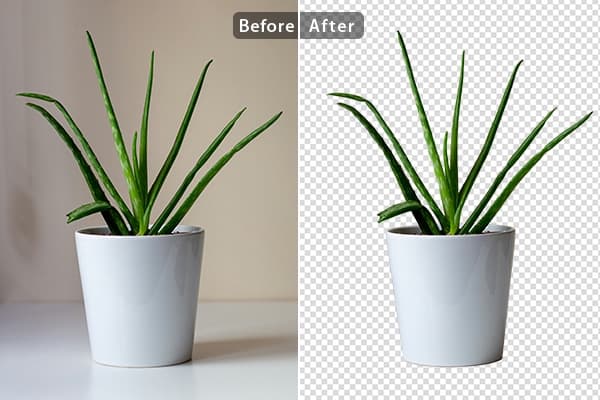
Run rembg-style background removal without installing Python. Compare the online tool, the REST API and self-hosting — with real processing-time trade-offs.
Détourez vos images dans le navigateur : pas de Python, pas de logiciel à installer. Comparaison entre outil en ligne, API REST et rembg en local.
أزل خلفية صورك من المتصفح مباشرة: بدون Python وبدون تثبيت أي برنامج. مقارنة بين الأداة أونلاين وواجهة API والأداة المحلية rembg.